Step-by-step guides for the things people come here to do — plus fixes for the problems that trip people up. Jump to a task, or scan the common issues near the bottom.
New to Kanzi? Pick the path that matches your situation.
I want to try Kanzi (individual)
If you're evaluating Kanzi on your own, start here.
1Go to portal.kanzi.com and click Sign up.
2Enter your name, email, and a password.
3Check your inbox and click the verification link.
4On the welcome screen, choose Individual.
5You'll land on the dashboard with a trial license ready to go. Head to the Studio
page to install Kanzi Studio.
I'm setting up Kanzi for my company
If you're the first person from your company on Kanzi, you'll create the organization and become its admin.
1Go to portal.kanzi.com and click Sign up.
2Enter your name, work email, and a password.
3Check your inbox and click the verification link.
4On the welcome screen, choose Company.
5Enter your company name — this creates your organization and makes you the admin.
6From Members, click Invite Member to bring your team on board.
7Once your team is in, open Licenses in the Account
I was invited to join a team
If a colleague sent you an invitation email, follow these steps.
1Open the invitation email and click the Accept invitation link.
2If you already have a Kanzi account, you'll be asked to sign in — then the invitation is accepted automatically.
3If you don't have an account yet, you'll be taken to the sign-up page with your email pre-filled. Create your account and the invitation is accepted on sign-in.
4You'll land on the dashboard as a Member of the organization that invited you.
If you're signed in with a different email than the invitation, you'll see a prompt to switch accounts.
Your admin controls what you can access. Members can download files, use Studio, and open support tickets. Admins can also manage licenses, members, and organization settings.
Find your way around the Portal
The Portal is split into areas. The areas are listed down the far left edge of the page; select one and its pages are listed in the column beside it.
Home — your dashboard.
Kanzi — Studio, Platforms, All Files, Learn, and a link to the Documentation. If you don't have access to Kanzi yet, this area shows About Kanzi, which explains Kanzi and how to get it, and Learn.
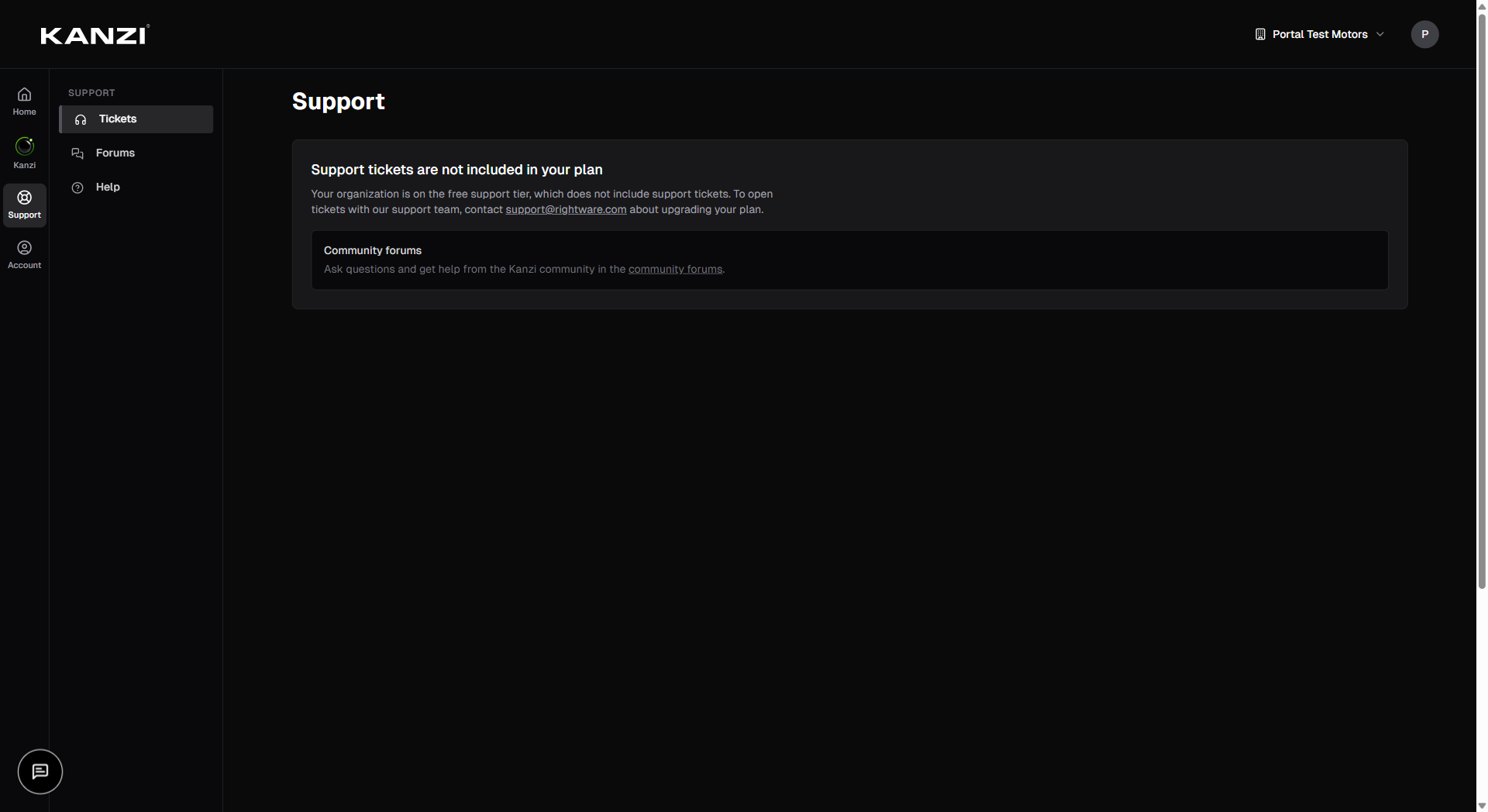
Support — Tickets, Forums, and this Help page.
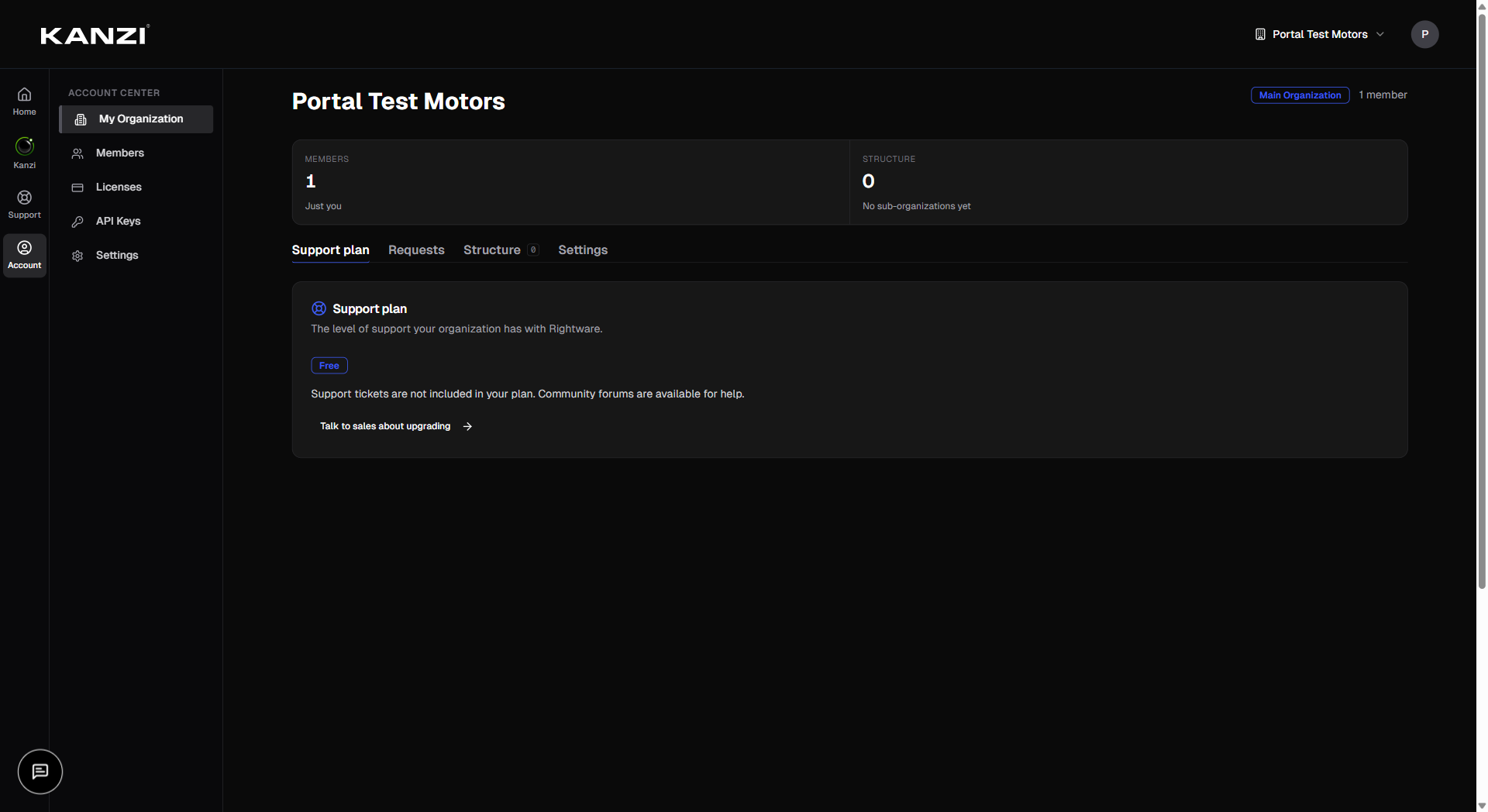
Account — My Organization, Members, Licenses, and API Keys (admins only), and your own Settings.
News is in the Resources
Find your way around the dashboard
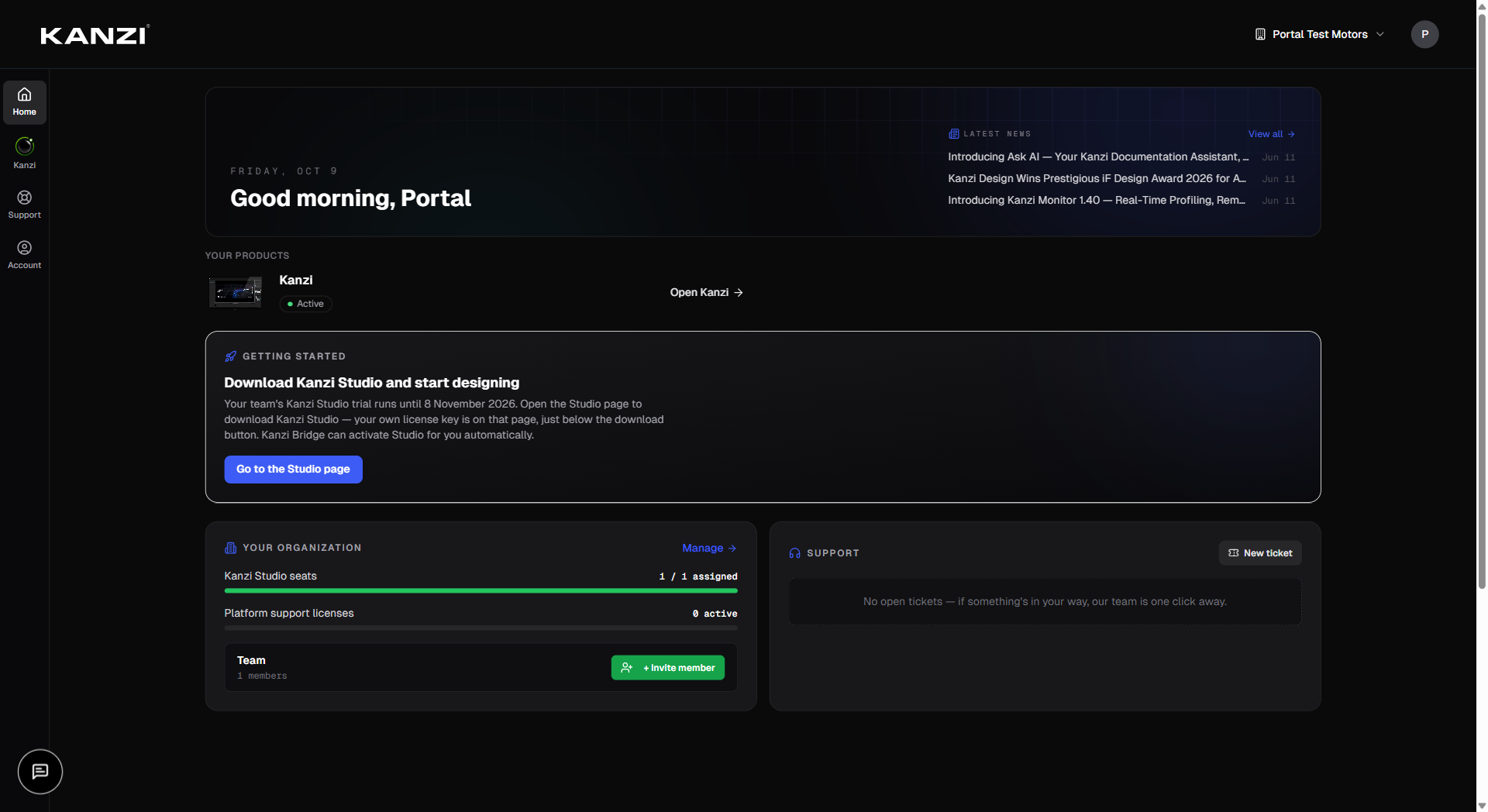
Home opens on the dashboard, your starting point after signing in. Here's what each section does.
Alerts — a strip at the top flags things that need your attention, such as platform licenses that expire within 30 days or pending invitations.
Your products — whether each product is in your plan, with a shortcut into it.
Getting Started — shown when you aren't in an organization yet: your Kanzi Studio trial, and the option to set up a team workspace.
Your Organization — Kanzi Studio seats, platform support licenses, and your team at a glance (admins only).
Support — your open support tickets, and a shortcut to a new one.
Latest News — announcements and updates from Rightware.
Looking for files, your projects, or templates? They are in the Kanzi area: All Files, and the Studio page.
Kanzi Studio & the Kanzi Bridge
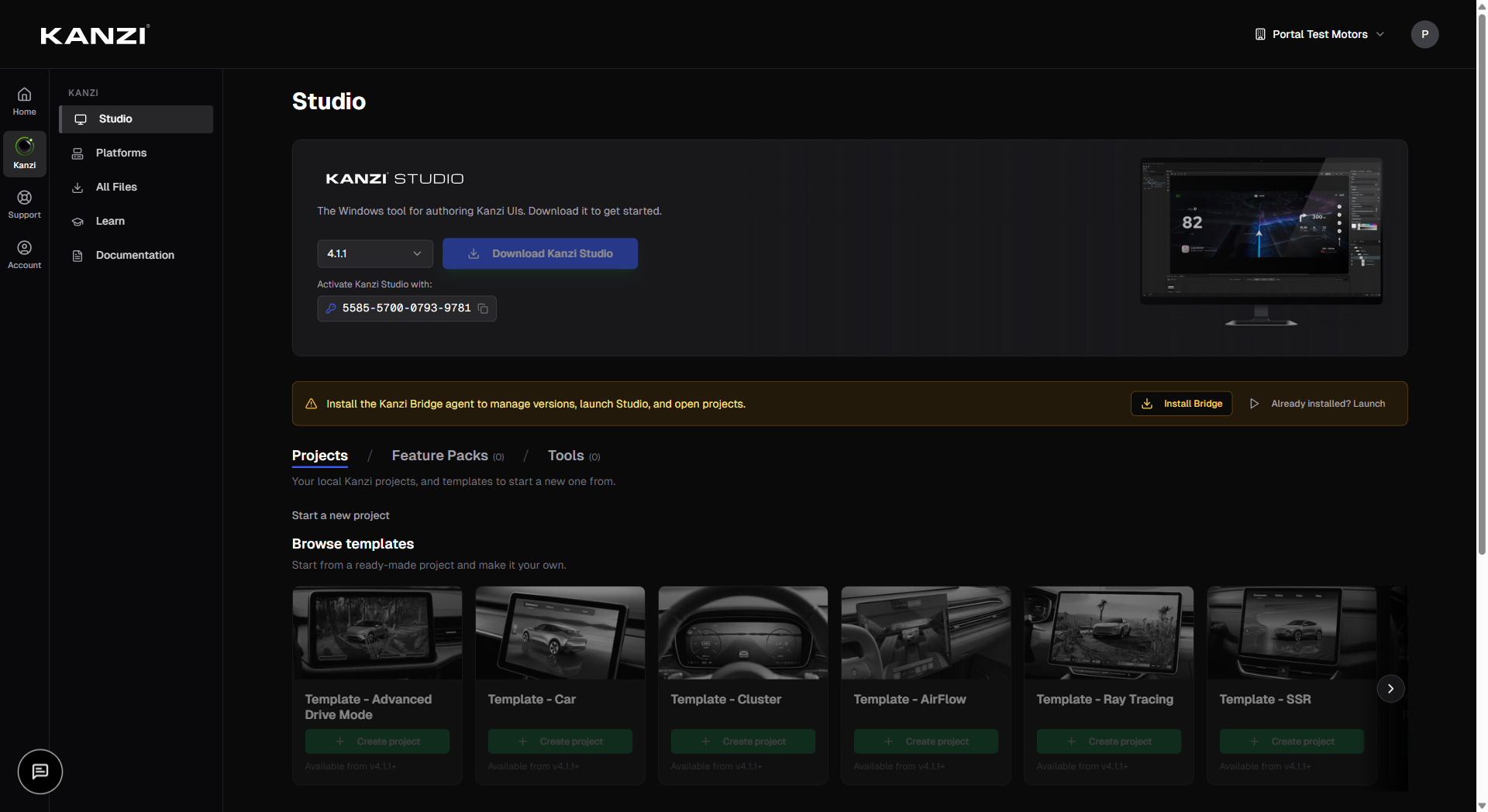
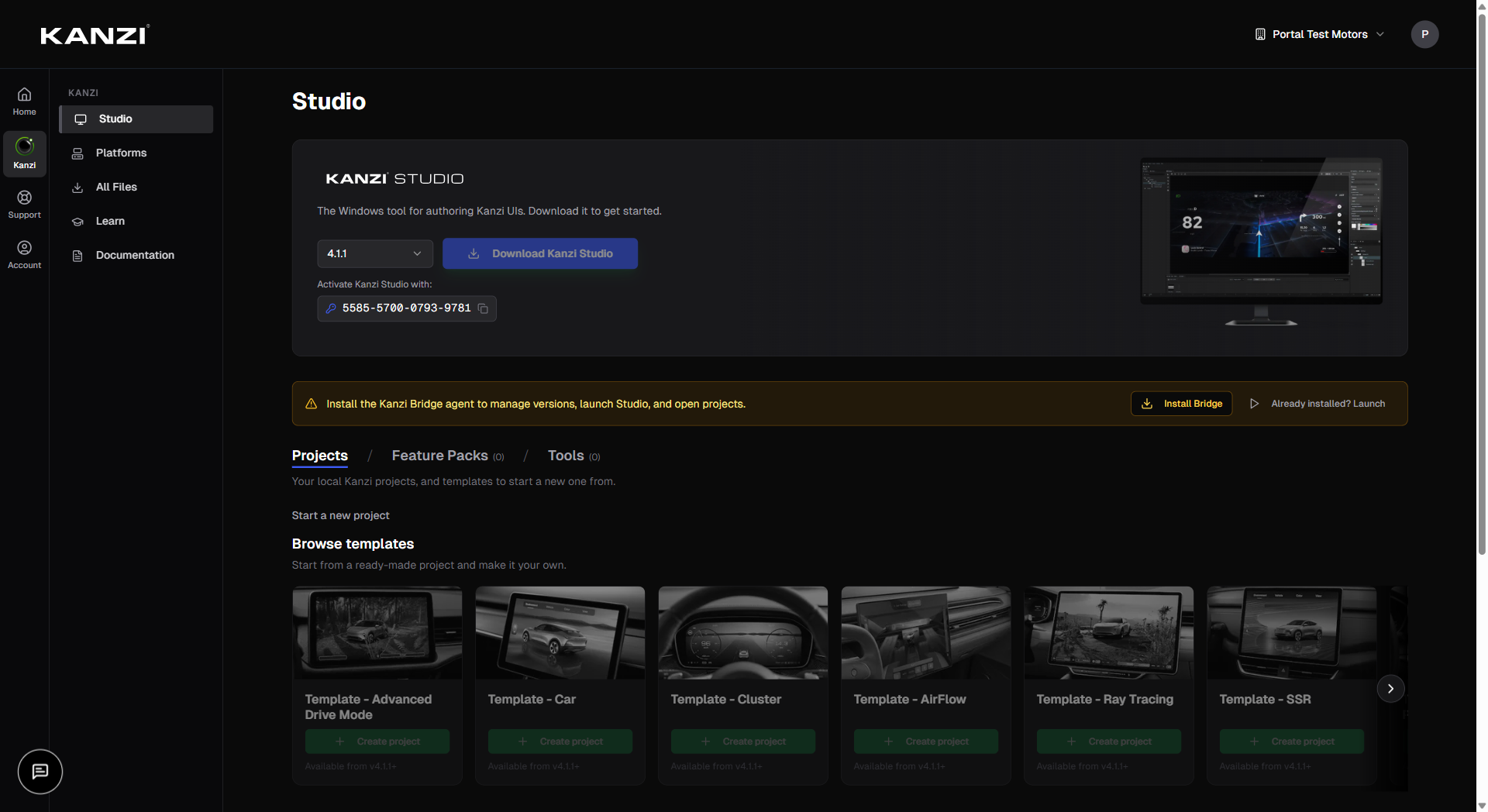
The Studio page is where you get, install, and launch Kanzi Studio. These actions run through the Kanzi Bridge — a small app on your own machine that the Portal talks to.
Set up the Kanzi Bridge first
The Studio page, including its Projects tab, needs the Kanzi Bridge running on your computer.
1In the Kanzi area, open Studio.
2If the Bridge isn't detected, click Install Bridge and run the installer.
3Once it's installed, click Launch Kanzi Bridge if prompted. The page connects on its own.
4The first time you install, launch, or open something, the Kanzi Bridge may show a confirmation window on your desktop. Click Allow to let this browser use it.
Platforms
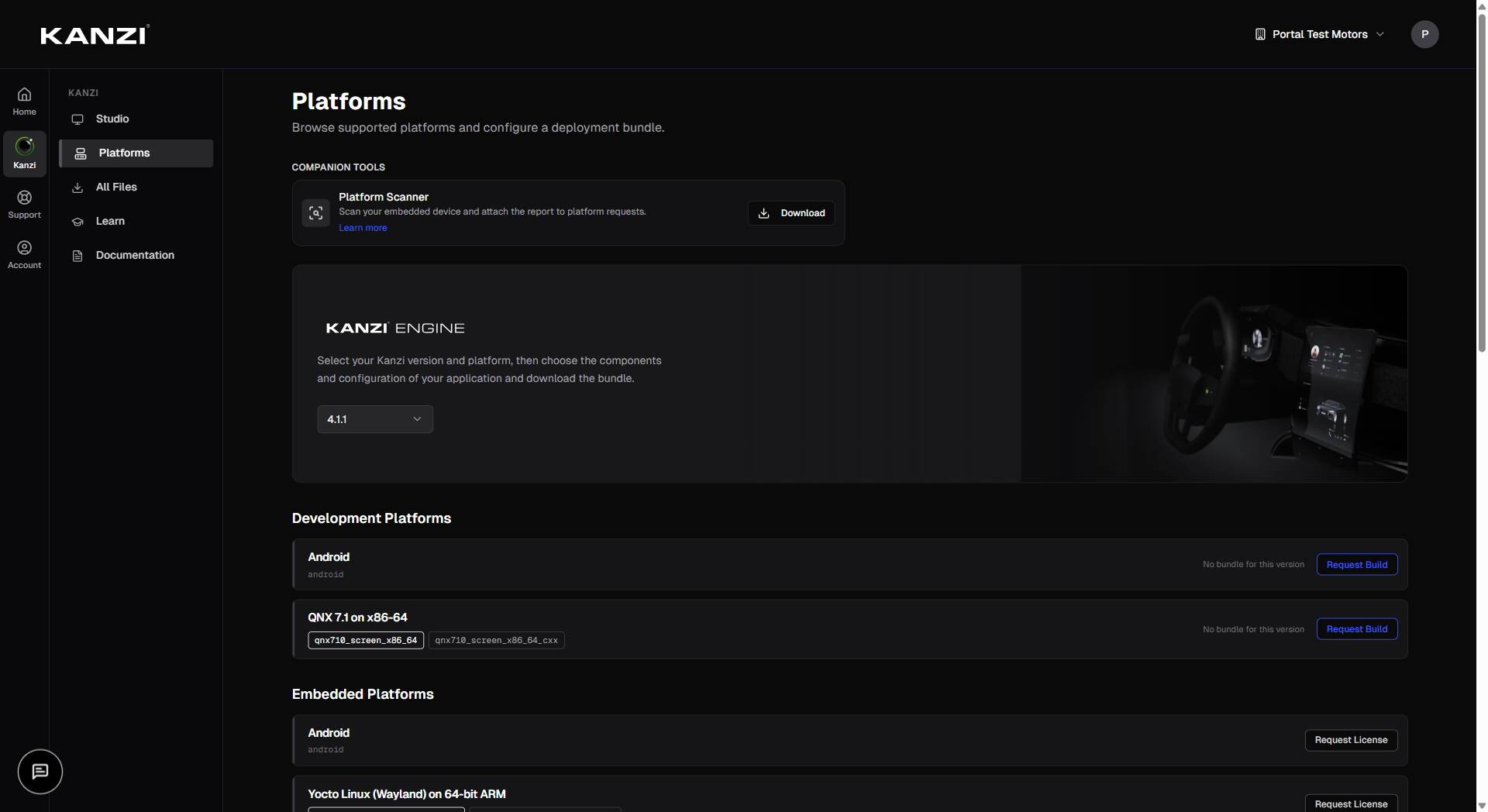
The Platforms page is where you download a Kanzi deployment package built for your hardware and OS — and request support for hardware that isn't covered yet.
Download a platform package
1Open Platforms and choose your Kanzi version.
2Find your platform and click Download Package(s) to expand it.
3Set the options — linking, build tool, font engine, feature packs. When it reads Bundle ready, click Download Bundle.
If your exact combination isn't pre-built, the button becomes Request Build instead — see below.
Request a build
Finding a specific file
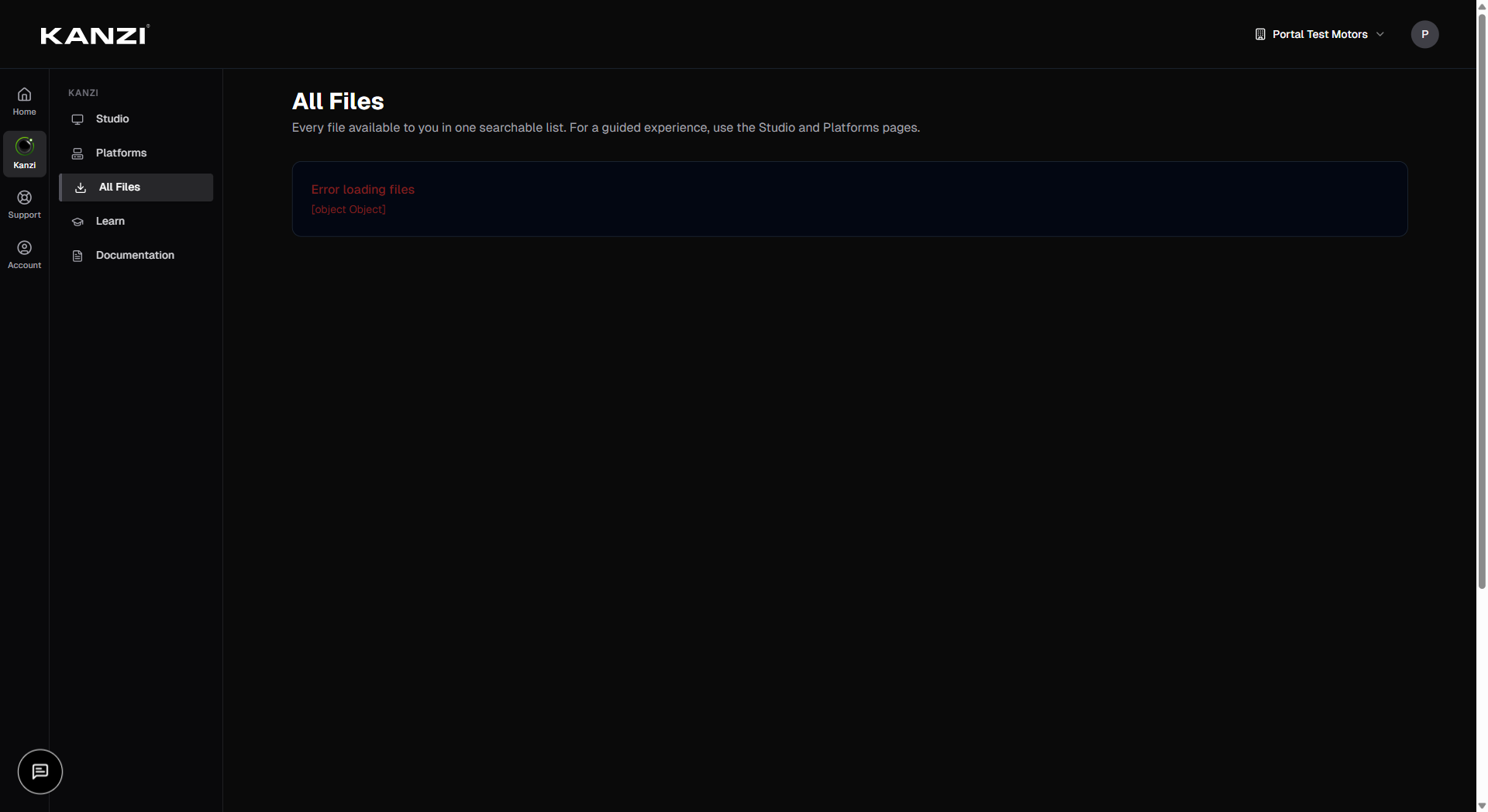
All Files is the full archive of everything your organization can download. Reach for it when you already know the file you want — a plugin, a document, or a specific build. To get Kanzi Studio use the Studio page above; for a deployment package use Platforms above.
Find a file in All Files
1In the Kanzi area, open All Files.
2Narrow the list with the Kanzi Version, Product, and Search filters. Search matches whole words in the file name, e.g. particles linux.
3Tick the files you want — or use Select all in group to take a whole product group.
4
Your local projects
Work with the Kanzi projects on your own machine from the Projects tab of the Studio page. This tab also needs the Kanzi Bridge running.
View your local projects
Projects auto-scans your local Kanzi workspaces — no manual import needed.
1In the Kanzi area, open Studio and choose the Projects tab. The Bridge automatically detects Kanzi workspaces on your machine.
2To add a new location, click Import and choose a folder.
Open a project
1Find the project card and expand it to see its files.
2
Licenses
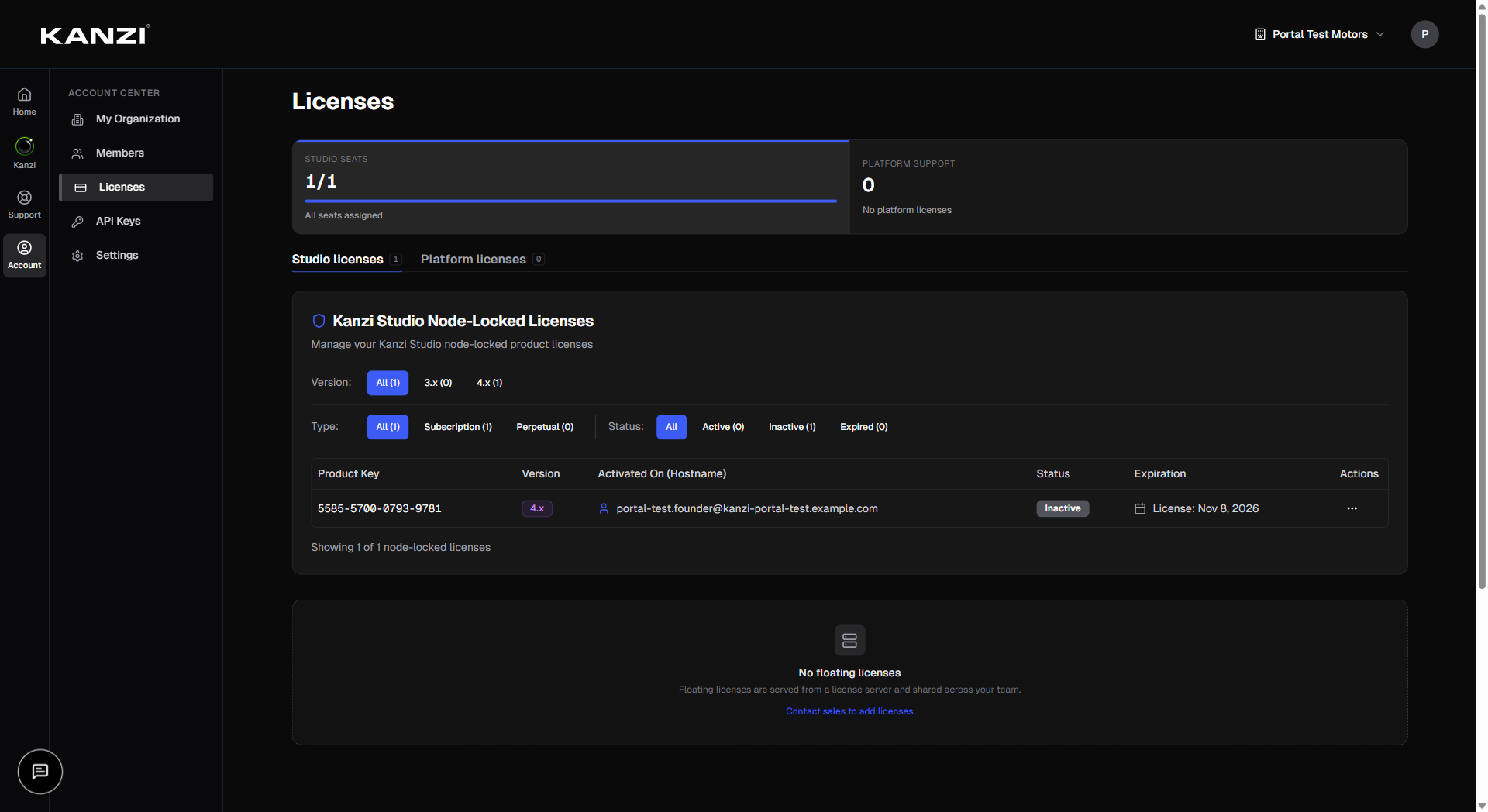
Organization admins manage licenses on Licenses, in the Account area. (Members don't see this page.)
See your licenses
The page has two tabs: Studio licenses and Platform licenses. Your organization's Support plan (its support level) and Requests (its requests to Rightware for a product) are tabs of My Organization.
On the license tabs, filter by version, type, and status.
Each node-locked license shows its status and, under Activated On, the person or host it's bound to.
Expired subscription licenses are automatically archived after 30 days. Toggle Show Archived at the top of the table to include them.
Assign a license to someone
Your team & organization
Admins manage members and roles under Members, and the organization's structure and settings under My Organization.
Invite a teammate
1Open Members in the Account area.
2Click Invite Member.
3Enter their Email Address, choose a Role (Admin or Member), and click Send Invitation.
Pending invites appear under the Invitations tab, where you can Revoke them.
Change a member's role or remove them
API keys
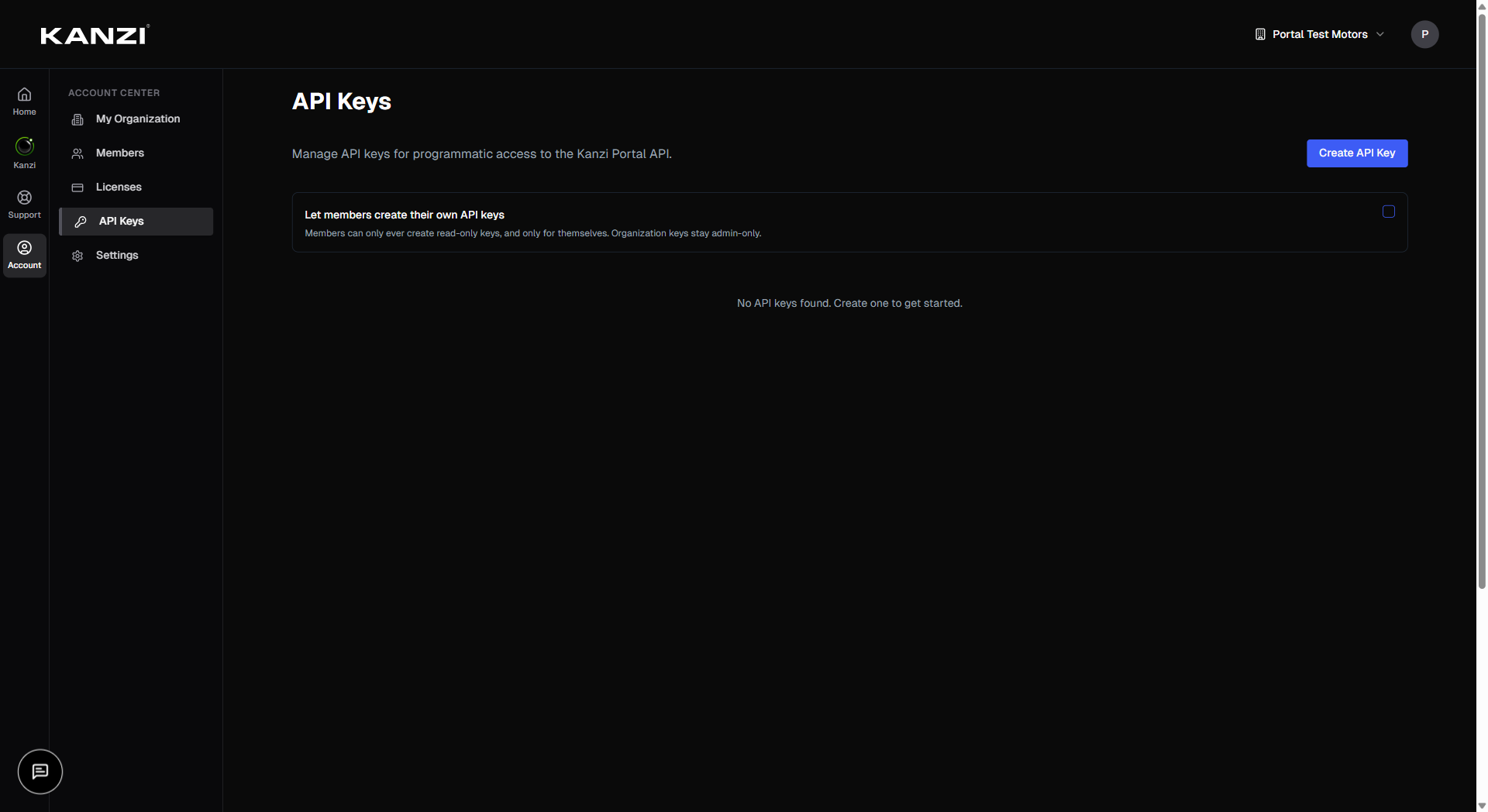
Organization admins can create API keys to access the Kanzi Portal API programmatically. Members don't see this page.
Create an API key
API keys let scripts and tools interact with the portal on your behalf — downloading files, querying licenses, or managing your organization.
1In the Account area, open API Keys.
2Click Create API Key.
3Give the key a name (e.g. ci-pipeline or license-sync).
4Choose the scope: User (acts as you) or Organization (acts on behalf of the org).
5
AI assistants (MCP)
The Portal runs an MCP server, so an AI assistant like Claude or Cursor can work with your licenses, files, organization and support tickets directly. It connects as you, and can only do what you can do.
Connect an AI assistant
The Portal's MCP endpoint is https://portal.kanzi.com/api/mcp. Any client that supports remote MCP servers over HTTP can use it — there is nothing to install and no API key to create.
1In your assistant, add a new remote MCP server over HTTP — some clients call this a custom connector.
2Give it a name — kanzi-portal — and the URL https://portal.kanzi.com/api/mcp.
3The client opens a browser window. Sign in to the Portal as you normally would, and approve the connection.
4Your assistant picks up the tool list. Try a read-only request first, such as asking it to list your licenses.
Support & community
Reach Rightware support, or ask the community.
Open a support ticket
1In the Support area, open Tickets and click New Ticket.
2Answer one question at a time. For a product issue you'll pick your Kanzi version, where it happens, and optionally the platform and products; for anything else, just give a title and description.
3Add the details (and any files), a short title, optionally CC teammates, then Submit ticket.
Follow up on a ticket
Open a ticket to read the whole thread; write in the reply box and click Send reply.
Use Add CC
Your account
Manage your own account from Settings, in the Account area or in the menu under your initial at the top right.
Delete your account
1Go to Settings and, under Danger zone, click Delete account.
2Type your email to confirm, then click Delete account.
Your assigned licenses are unassigned (not deleted), and you're removed from all organizations.
If you're the only admin of an organization that still has other members, promote another admin first.
Privacy, terms & region
Find the
What you can see
What you can do depends on your role in your organization. Whatever your role, you always manage your own account and can download files that are public to everyone.
Role
What it can do
Member
View your organization's data and download the files it's entitled to. Sees Home, the Kanzi area (Studio, Platforms, All Files, Learn), the Support area (Tickets, Forums, Help), News, and Settings in the Account area.
Admin
Everything a member can do, plus My Organization, Members, Licenses, and API Keys in the Account area — managing members and roles, licenses and sharing, sub-organizations, and organization settings.
Common issues
Quick fixes for the things people ask about most.
If…
Try this
You don't see My Organization, Members, Licenses, or API Keys in the Account area.
Those are admin-only. Ask an admin in your organization to make you an admin if you need them.
Your file list is empty.
You may not be in an organization yet, or none of its licenses match available files. Public files still show. Join or switch to the right organization, or ask your admin.
The Studio page or its Projects tab says the Kanzi Bridge isn't running.
Click Launch Kanzi Bridge. If it still won't connect, use Need to install? to reinstall it, then try again.
Still need help?
Can't find it here? These get you to a person.
Open a support ticket from the Support page — it walks you through it step by step.
Ask the community forums on the Forums page.
Explore the API reference at portal.kanzi.com/api/v1/docs for programmatic access to the portal.
area to assign Kanzi Studio licenses to each person.
You can add verified domains under My Organization so that anyone with a matching email can join automatically — no invitation needed.
column of the footer at the bottom of every page. News and Learn can be read without signing in.
On a small screen, open the menu at the top left. It lists every area and its pages, including News.
Install a Kanzi Studio version
1On the Studio page, pick a version from the Versions picker — installed versions show a checkmark.
2For a version you don't have yet, click Install and watch it download and install.
No Bridge running? The button becomes Download Kanzi Studio so you can grab the installer directly.
Launch Kanzi Studio
1Pick an installed version in the Versions picker.
2Click Launch.
Create a project from a template
1On the Studio page, open the Projects tab and browse the templates under Start a new project.
2Click Create project on one. The Portal sets it up and opens it in Studio, showing each step as it goes.
If the Bridge is offline you can still Download project to get the template files.
Browse and install addons
Addons include feature packs, plugins, and additional content for specific Kanzi Studio versions.
1Open the Studio page and choose the Feature Packs or Tools tab.
2Pick the Kanzi version you're working with — addons are version-specific.
3Click Install (if Bridge is running) or Download to save the addon file.
When the configuration you need isn't available yet:
1Configure the platform as above, then click Request Build.
2Review the details and click Request build. We open a support ticket and follow up by email.
Request or renew a platform license
1On an embedded platform, click Request License — or Renew License if support is expiring.
2Fill in the hardware details (or pick which licenses to renew) and submit. We follow up by email.
Request a custom platform
1Scroll to Request a Custom Platform and pick a service level that fits your needs.
2Click Request This Service, describe your hardware and OS, and submit.
Use the Platform Scanner
The Platform Scanner is a tiny tool you run on an embedded Linux device to capture its configuration — the exact information we need to assess Kanzi compatibility.
1From Platforms, download the scanner build that matches your device's CPU (check with uname -m).
2Copy it onto the device.
3Run it — for example ./kanzi-scanner --json > scan.json.
4Attach the resulting scan.json to a platform request or a support ticket.
Click Download on a row, or Download N file(s) at the top for several at once. Your browser downloads them one after another.
What you can see follows your organization's entitlements. Files that are public to all users always appear.
Search by file name
In a hurry? Go straight to the search.
1In the Kanzi area, open All Files.
2Type a file name into Search. The list narrows as you type.
3Click Download on a result.
Click
Open
on a file — it opens in its matching Studio version.
The matching Studio version has to be installed. If it isn't, install it from the Studio page first.
A project downloaded from the internet asks for confirmation in a Kanzi Bridge window on your desktop before it opens. Click Open there to continue.
Keep projects organized
Use the version filter to show only projects for one Kanzi version.
Click the star on a project or file to favorite it so it appears first.
1
On Licenses, open the Studio licenses tab, then the ⋮ menu on a node-locked license, and choose Assign / Reassign User.
2Pick an organization member from the list.
3Click Assign.
A license that's already assigned has to be freed first — use Remove assignment in the same dialog.
Release a license
Release a license only if you've lost access to the machine it's activated on.
1Open the ⋮ menu on the license and choose Release License.
2Confirm with Release License.
Still have the machine? Transfer the license from within Studio instead: Help → Manage Licenses → Release this license.
Floating & platform-support licenses
Floating licenses show their server and concurrent-user count; they aren't assigned to individuals.
Platform-support licenses show the hardware, OS, and when support ends.
1In Members, open the ⋮ menu next to a person.
2Choose Make Admin, Remove Admin, or Remove Member.
Switch your active organization
1Click your organization's name in the bar at the top of the page.
2Under Switch Organization, click the organization you want to work in — the Portal remembers your choice next time.
Sub-organizations & license sharing
Admins of a main organization can Create a sub-organization (up to two levels deep) from My Organization.
Share a node-locked license down to a sub-org from the license's ⋮ → Share License — the license must not be assigned to a user first.
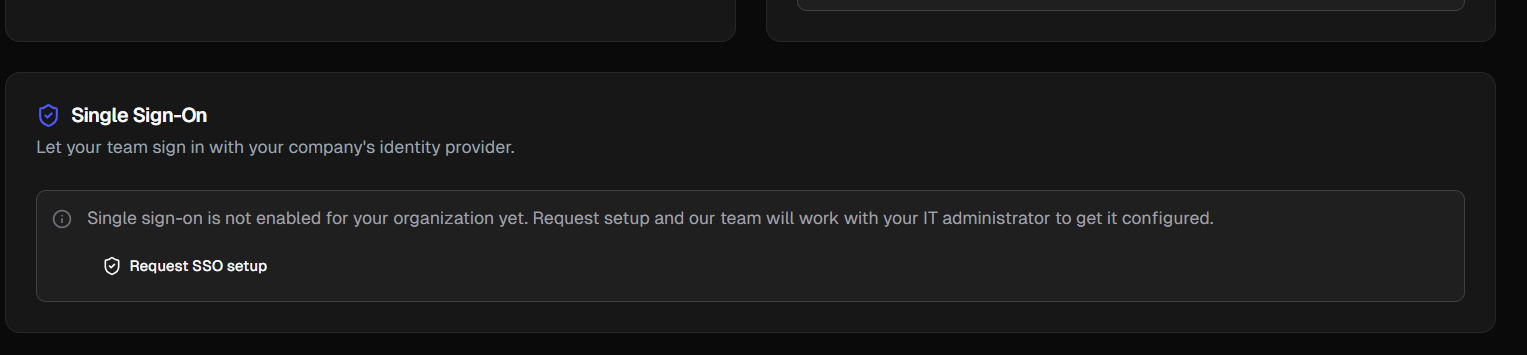
Request single sign-on
1In My Organization, open Single Sign-On.
2Click Request SSO setup and give an IT contact. Our team follows up to configure it with them.
Verify a domain for automatic joining
Verified domains let anyone with a matching email address join your organization automatically — no invitation needed. This is useful for large teams where sending individual invites isn't practical.
1Open My Organization and scroll to Verified Domains.
2Click Add Domain and enter your company's email domain (e.g. acme.com).
3Follow the verification steps — typically adding a DNS record to prove you own the domain.
4Once verified, toggle Auto-join on. New users who sign up with an @acme.com email will be added to your organization as Members automatically.
Only the main organization admin can verify domains (not sub-organization admins).
Auto-join users get the Member role by default. Promote them to Admin manually if needed.
Create and manage sub-organizations
Sub-organizations let you mirror your company structure — separate teams, divisions, or subsidiaries can each have their own members and shared licenses while staying under your main organization.
1Open My Organization and click Sub-Organizations.
2Click Create and enter the sub-organization name.
3Manage the sub-org's members separately — invite people or move existing members.
4To share licenses with a sub-org, go to Licenses, find an unassigned node-locked license on the Studio licenses tab, and choose Share License from the menu.
Sub-organizations can only be created by main organization admins.
A license must be unassigned before it can be shared to a sub-org.
To delete a sub-org, open its settings and click Delete. Members are removed from the sub-org but keep their main org membership.
Select which permissions the key should have — you can grant read/write access per resource (licenses, members, downloads, etc.).
6Click Create. The full key is shown once — copy it now, because you won't see it again.
Store API keys in your CI secrets or a vault — never commit them to source control.
Use an API key
Pass the key as a Bearer token in the Authorization header.
1Set the header: Authorization: Bearer user_abc123... (or org_abc123... for org-scoped keys).
2Make requests to https://portal.kanzi.com/api/v1/... — the full API reference is at portal.kanzi.com/api/v1/docs.
User-scoped keys (user_ prefix) act as you and inherit your role.
Org-scoped keys (org_ prefix) act on behalf of the organization.
Keys respect the permissions you set at creation time — a key with read-only access to licenses can't modify members.
Disable or revoke a key
1In the Account area, open API Keys.
2Find the key in the list and click the toggle to disable it (temporarily) or click Revoke to delete it permanently.
Disabled keys stop working immediately but can be re-enabled later.
Revoked keys are gone forever — any script using that key will stop working.
Claude — Settings → Connectors → Add custom connector, then paste the URL.
Claude Code — claude mcp add --transport http kanzi-portal https://portal.kanzi.com/api/mcp, then run /mcp to finish signing in.
Cursor, VS Code and other editors — add it under the editor's MCP settings as an HTTP server with the same URL.
On the China Portal, use https://portal.kanzi.cn/api/mcp instead.
Sign-in happens over OAuth in your browser, so no password or API key is stored in the assistant's configuration.
What an assistant can do
The tools mirror the Portal API, so an assistant sees exactly what you see when you're signed in — no more.
Licenses — list assignments and hosts, and see what's active or expiring.
Organization — members, roles, sub-organizations and branches.
Downloads — find files and Kanzi Studio versions, and get download links.
Support — open tickets, add comments, and attach files.
Products — browse platform packages and releases.
Admin-only actions stay admin-only. As a member, an assistant asking to change licenses or members is refused exactly as you would be in the Portal.
Disconnect an assistant
1Remove the server from your assistant's MCP settings — in Claude Code, claude mcp remove kanzi-portal.
2The access token it was holding expires on its own and is not renewed once the connection is gone.
to bring teammates in. Replies from Rightware support are clearly marked.
Ask the community forums
1Open Forums and pick a topic.
2Read the posts, or click New Post to ask your own.
3Reply to a post, and upvote the answers you find helpful.
A checkmark means a post is answered, a pin means it's important, and Official marks a reply from Rightware.
If your plan doesn't include tickets, the Support page points you to the community forums instead.
Privacy Policy
and
Terms of Use
in the footer of any page.
You're sent to the Portal for your region automatically, and can switch between the global and China versions yourself.
A teammate can't sign in with single sign-on.
SSO has to be set up for your organization first. A main-organization admin can request it from My Organization → Settings.
Support or Forums say “Can't connect right now.”
This is usually temporary — click Retry in a moment.
You can't assign or release a license.
License management is admin-only. Ask an admin in your organization.
I don't see the **API Keys** page
API keys are admin-only. Ask your organization admin to promote you, or ask them to create a key for you.
My API key stopped working
Check if the key was disabled or revoked by an admin. Create a new key if needed.
My AI assistant can't connect to the Portal
Check the URL is exactly `https://portal.kanzi.com/api/mcp` (`portal.kanzi.cn` on the China Portal) and that the client is set to a remote **HTTP** server. If no browser window opens for sign-in, allow pop-ups for the client and try again.
My assistant connects, but a tool says it isn't allowed
MCP tools follow your role. Licenses, members and API keys are admin-only — ask your organization admin, or have them run the action.
I signed up but I'm not in any organization
You may have chosen **Individual** during onboarding. Ask an admin to invite you, or if your company has a verified domain, sign up with your work email to join automatically.